Google Analytics Setup Guide for E-Commerce Success

Running an e-commerce business in the United Kingdom means every decision can affect your bottom line, yet understanding exactly how visitors interact with your online shop is often a mystery. Setting up Google Analytics offers a pathway to reliable data, giving you the chance to fine-tune your website for more sales and smarter marketing. By learning how to implement and configure accurate website tracking, you gain powerful insights that help guide your business to greater success.
Table of Contents
- Step 1: Prepare Your Website For Google Analytics Integration
- Step 2: Create And Configure Your Google Analytics Account
- Step 3: Install The Tracking Code On Your E-Commerce Site
- Step 4: Enable Enhanced E-Commerce And Conversion Tracking
- Step 5: Verify Data Collection And Test Tracking Performance
Quick Summary
| Key Point | Explanation |
|---|---|
| 1. Verify website compatibility | Check that your website’s CMS supports Google Analytics and has no significant technical barriers. |
| 2. Follow correct account setup steps | Create your account with accurate business information and configuration settings for effective tracking. |
| 3. Install tracking code properly | Add the Google Analytics tracking snippet to appropriate sections of your website’s HTML for data collection. |
| 4. Enable enhanced e-commerce tracking | Implement specific tracking events to capture detailed customer interactions within your e-commerce site. |
| 5. Test data collection thoroughly | Conduct comprehensive tests to ensure all tracking features are functioning correctly and collecting accurate data. |
Step 1: Prepare your website for Google Analytics integration
Setting up Google Analytics requires precise website preparation to ensure accurate tracking and valuable insights for your e-commerce business. This stage involves several critical technical configurations that will enable comprehensive performance monitoring.
To begin, you’ll need to verify your website’s compatibility and accessibility for Google Analytics tracking. This means checking your website’s technical infrastructure and ensuring you have administrative access to both your website’s backend and potential Google properties. Your primary tasks include:
- Confirming your website’s content management system (CMS) supports Google Analytics integration
- Verifying you have administrative login credentials for your website
- Checking that your website loads correctly and has no significant technical barriers
The integration process requires generating a unique tracking code from your Google Analytics account, which you’ll subsequently embed into your website’s source code. Modern content management systems like WordPress often provide straightforward plugins to simplify this process, allowing even non-technical business owners to track website analytics without extensive coding knowledge.
Each website platform has slightly different integration steps, but the core process remains consistent: obtain your tracking code, locate your website’s header or footer template, and insert the provided Google snippet. Professional web developers typically complete this within minutes, ensuring minimal disruption to your existing website structure.
Accurate website preparation is the foundation of meaningful digital performance tracking.
Expert tip: Always create a backup of your website before making any code modifications to prevent potential technical complications.

Step 2: Create and configure your Google Analytics account
Creating your Google Analytics account is a straightforward process that forms the foundation of your e-commerce tracking strategy. This critical step will enable you to set up comprehensive performance monitoring for your online business.
To begin, navigate to the official Google Analytics website and click on the ‘Sign Up’ button. You’ll need a Google account to proceed, so ensure you have your credentials ready. When creating your account, you’ll be prompted to provide key information about your business and website, including your account name, website URL, and industry category. Google Analytics setup for beginners recommends carefully selecting these details to ensure accurate tracking.
The account configuration involves several important steps:
- Choose between Universal Analytics or Google Analytics 4
- Select the appropriate data sharing settings
- Define your primary reporting view
- Configure user permissions for team access
After creating your account, Google will generate a unique tracking ID and tracking code specific to your website. This code is crucial as it will enable Google to collect and process data about your website visitors and their interactions.
Accurate account configuration is the key to obtaining meaningful insights about your online performance.
The next phase involves implementing the tracking code on your website, which can typically be done through your content management system or by directly editing your website’s HTML.
Expert tip: Create separate views within your Google Analytics account to maintain an unfiltered master view and additional filtered views for more specific analysis.
Step 3: Install the tracking code on your e-commerce site
Installing the Google Analytics tracking code is a critical step that enables comprehensive data collection for your e-commerce website. This process transforms your Google Analytics account from a theoretical setup to a live performance monitoring system.
The installation process varies depending on your website’s platform, but generally involves adding a specific tracking snippet to your site’s HTML. Tracking code installation guide recommends several methods for implementing your tracking code:
- Manual HTML insertion
- Using content management system (CMS) plugins
- Utilising Google Tag Manager
- Implementing through e-commerce platform settings
For WordPress websites, most users can simply install a Google Analytics plugin that handles the code insertion automatically. If you’re comfortable with HTML, you’ll want to locate your website’s header or footer template and paste the tracking code snippet provided by Google Analytics.
Below is a summary of popular Google Analytics tracking code installation methods and when to use each:
| Installation Method | Typical Suitability | Ease of Use | Maintenance Needs |
|---|---|---|---|
| Manual HTML insertion | Custom websites | Technical skills | Manual updates required |
| CMS plugin (e.g., WordPress) | Non-technical site owners | Very easy | Low, auto-updates |
| Google Tag Manager | Advanced tracking setups | Moderate | Centralised management |
| E-commerce platform integration | Hosted shop platforms | Straightforward | Depends on platform |
The key sections where you’ll typically insert the tracking code include:
- Immediately after the opening "` tag
- Before the closing
</body>tag - On every page of your website to ensure comprehensive tracking
Proper tracking code installation ensures accurate and comprehensive data collection for your online business.
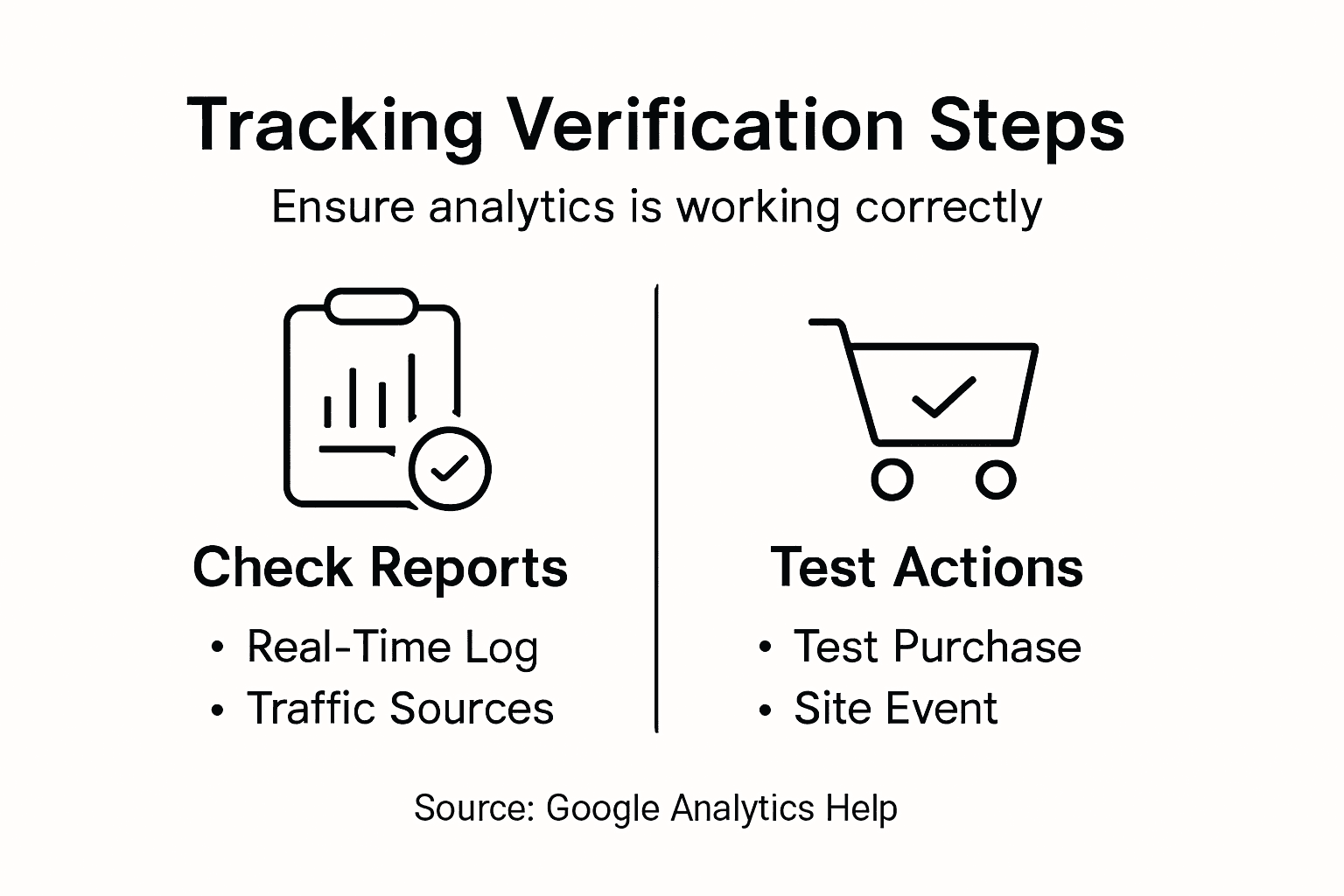
After installation, verify your tracking by checking the real-time reports in your Google Analytics dashboard to confirm data is being collected correctly.
Expert tip: Always test your tracking code on a staging site first to ensure it doesn’t interfere with your website’s performance or create any unexpected loading issues.
Step 4: Enable enhanced e-commerce and conversion tracking
Enabling enhanced e-commerce tracking transforms your Google Analytics from a basic visitor counter to a sophisticated sales performance analysis tool. This advanced configuration provides deep insights into your online store’s customer journey and purchasing behaviours.
Ecommerce tracking configuration requires strategic implementation of specific tracking events that capture critical interactions throughout your customer’s shopping experience. The process involves configuring detailed tracking for multiple stages of the purchasing funnel:
- Product page views
- Add-to-cart actions
- Checkout process interactions
- Completed purchase events
- Refund and return tracking
To activate enhanced tracking, you’ll need to modify your website’s analytics implementation. This typically involves adding specific event tracking code to key conversion points. For most e-commerce platforms, this can be accomplished through built-in integrations or Google Tag Manager.
The primary tracking events you’ll want to capture include:
- Viewing product details
- Adding products to shopping cart
- Initiating checkout
- Completing a purchase
- Processing potential refunds
Enhanced e-commerce tracking provides granular insights that traditional analytics cannot match.
By implementing these tracking mechanisms, you’ll gain unprecedented visibility into your online store’s performance, customer behaviour, and potential conversion bottlenecks.
The table below highlights the business benefits of enabling enhanced e-commerce tracking in Google Analytics:
| Feature | Direct Business Benefit | Strategic Value |
|---|---|---|
| Product interactions tracking | Pinpoints top and low-performing items | Optimises product strategy |
| Cart abandonment analysis | Identifies drop-off points in checkout | Reduces lost sales |
| Purchase funnel insights | Reveals bottlenecks in customer journey | Improves conversion rates |
| Refund and return reporting | Monitors after-sales activities | Informs future offers |
Expert tip: Test your enhanced tracking configuration thoroughly by making test purchases and verifying that all transaction details are accurately captured in your analytics reports.
Step 5: Verify data collection and test tracking performance
Verifying your Google Analytics tracking performance is crucial to ensuring you’re capturing accurate and meaningful data about your e-commerce website’s user interactions. This final configuration step confirms that all your previous setup efforts are functioning correctly.
Tracking implementation verification involves multiple strategic approaches to confirm your analytics are working precisely. You’ll want to systematically test different tracking mechanisms to guarantee comprehensive data collection:
- Check real-time user tracking
- Verify event tracking functionality
- Test conversion and purchase tracking
- Validate cross-device tracking
- Confirm data accuracy and completeness
To begin testing, navigate to the real-time reports section in your Google Analytics dashboard. Here, you can perform actions on your website and immediately see if those interactions are being recorded. This includes:
- Visiting different product pages
- Adding items to your shopping cart
- Simulating a complete purchase
- Checking multiple device types
Thorough testing reveals potential tracking gaps before they impact your data analysis.
If you encounter any discrepancies, review your tracking code implementation and ensure all necessary scripts are correctly installed across your website.
Expert tip: Create a separate testing profile in Google Analytics to conduct verification without interfering with your primary data collection process.
Unlock Your E-Commerce Potential with Expert Google Analytics Support
Setting up Google Analytics correctly is essential to unlocking the true power of your e-commerce business. If you find yourself overwhelmed by technical tracking terms like enhanced e-commerce tracking or unsure about how to install your website’s tracking code correctly, you are not alone. Many online store owners share the goal of gaining clear, actionable insights but face challenges in precise data collection and interpretation. With Kickass Online, you can move beyond confusion and hesitation to confident, data-driven decisions that boost conversions.

Discover personalised web development and digital marketing solutions tailored to your unique e-commerce needs. Our dedicated team simplifies the complexities of Google Analytics setup, ensuring your tracking is flawless and your customer journey is fully visible. Visit our Tutorials | Kickass Online for practical guides and let us help you transform insights into growth. Book a consultation at https://kickassonline.com today and start maximising your online sales with professional support designed specifically for small and medium-sized business success.
Frequently Asked Questions
How do I prepare my website for Google Analytics integration?
To prepare your website for Google Analytics integration, verify that your content management system supports it and ensure you have administrative access. Check your website’s functionality to confirm it loads correctly, then proceed to generate your unique tracking code from your Google Analytics account.
What information do I need to create my Google Analytics account?
When creating your Google Analytics account, you need a Google account and details about your business, including your account name, website URL, and industry category. Enter this information accurately to ensure correct tracking from the start.
How do I install the Google Analytics tracking code on my e-commerce site?
To install the Google Analytics tracking code, you can either manually insert the HTML snippet into your site or use a content management system plugin for automatic integration. Ensure the code is added to the header or footer of your site to enable comprehensive tracking across all pages.
What are the benefits of enabling enhanced e-commerce tracking in Google Analytics?
Enabling enhanced e-commerce tracking provides you with detailed insights into customer behaviour, including product interactions and shopping cart abandonment. This data helps identify bottlenecks in the purchasing process and can significantly improve your conversion rates by optimising your sales strategy.
How can I verify that my Google Analytics tracking is working correctly?
To verify that your Google Analytics tracking is functioning properly, check the real-time reports section for immediate updates on user interactions. Perform actions on your website, such as product views and purchases, to ensure these events are recorded accurately in your analytics dashboard.
What should I do if I encounter issues with my Google Analytics tracking setup?
If you encounter issues with your Google Analytics tracking setup, review your tracking code implementation to ensure that scripts are correctly installed and functioning on all necessary pages. Test your configurations thoroughly and create a separate testing profile to keep your primary data clean while troubleshooting.
Recommended


Book A Discovery Call
Stay Connected